AS SSD Benchmark: Professional Performance Suite & Resource Hub
Accurately measure your Solid State Drive’s performance with the industry-standard testing suite. Designed specifically for SSDs to test 4K random read/write, access time, and copy speeds without OS cache interference.
Core Testing Suite: What Does AS SSD Measure?
Sequential Read/Write
Measures the sustained transfer speed by reading and writing a 1 GB file. This simulates large file transfers like high-definition videos or game installations.
4K Random Performance
The most critical metric for OS responsiveness. It tests how fast the SSD handles small, scattered files, reflecting real-world software launching and system booting.
4K-64 Thread (NCQ)
Simulates a high-load environment by distributing read/write operations over 64 threads. It effectively highlights the performance gap between AHCI/NVMe and legacy IDE modes.
Accurate Access Time
Measures the delay (latency) in milliseconds for the SSD to find and access data. For high-end NVMe drives, this is often the most impressive stat compared to HDDs.
Practical Copy Tests
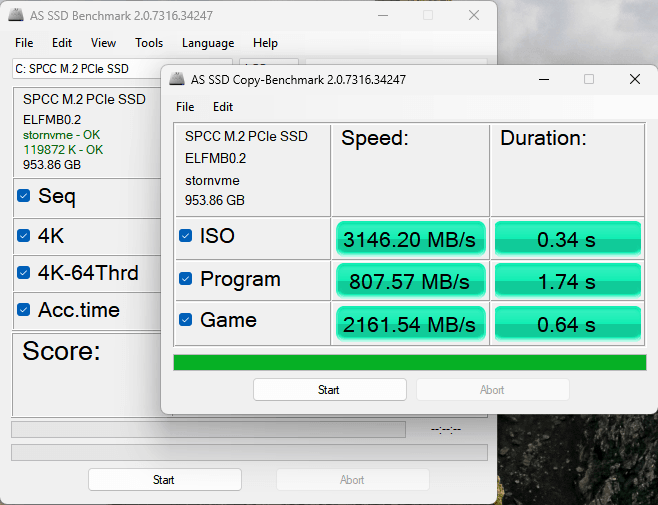
Beyond synthetic numbers, this tool creates test folders (ISO, Program, Games) to simulate real-world file copying performance with the OS cache enabled.
Compression Analysis
Generates a graph showing how your SSD controller handles data compression—vital for identifying performance drops in specific data types.
Understanding the AS SSD Scoring Formula
Unlike other benchmarks that only show raw MB/s, AS SSD provides a weighted score to give you a clearer picture of your drive’s overall health and efficiency.
The Mathematical Logic
Total Score =
(SeqWrite * 0.15) + (SeqRead * 0.1) +
(4KRead * 2) + 4KWrite +
(4-64ThrdRead * 1.5) + 4-64ThrdWrite
* All values in MB/s
Why the 4K Weights Matter
- 1 The 4K Priority: Notice the 2.0x multiplier on 4K Read. This is because OS boot times and application loading depend almost entirely on small-file read performance.
- 2 Threaded Efficiency: The 1.5x multiplier for 64-Threaded reads highlights the drive’s ability to handle multiple simultaneous requests via NVMe/AHCI.
- 3 Zero-Cache Testing: AS SSD bypasses your operating system’s RAM cache, ensuring you see the hardware’s true speed, not a temporary software boost.
Pro Tip: If your scores are significantly lower than advertised by the manufacturer, check if your drive is 4K Aligned or if AHCI/NVMe mode is enabled in your BIOS. AS SSD will display a red “BAD” notice in the top-left corner if these critical settings are misconfigured.
Technical Specifications
System Requirements
-
Operating System
Windows 10, Windows 11 (Home/Pro/Enterprise)
-
Software Framework
Microsoft .NET Framework 4.6 or higher
-
User Rights
Administrator privileges required for direct disk access
AS SSD Benchmark: What is a “Good” Score?
Ran the test but confused by the numbers? Performance varies significantly depending on your drive’s generation (SATA vs. NVMe PCIe 4.0/5.0).
SATA III Typical Results
- Seq Read: 500 – 560 MB/s
- Seq Write: 450 – 520 MB/s
- 4K Read: 30 – 50 MB/s
- Total Score: 1,000 – 1,300
NVMe PCIe 4.0 High-End
- Seq Read: 5,000 – 7,500 MB/s
- Seq Write: 4,000 – 6,500 MB/s
- 4K Read: 70 – 90 MB/s
- Total Score: 8,000 – 11,000
NVMe PCIe 5.0 Extreme (2026)
- Seq Read: 10,000 – 14,500+ MB/s
- Seq Write: 9,000 – 12,000+ MB/s
- 4K Read: 90 – 120+ MB/s
- Total Score: 15,000+
Frequently Asked Questions
Quick answers to the most common questions about AS SSD Benchmark.
Q: Is AS SSD Benchmark safe for my SSD?
Yes, it is completely safe. The tool writes a temporary 1GB test file to your drive to measure performance and deletes it immediately after the test. It does not cause excessive wear and tear on modern NAND flash cells during a standard run.
Q: Why does my score show “BAD” in red text?
The “BAD” notification usually refers to two critical issues: 1. 4K Alignment: Your partition is not properly aligned with the SSD’s physical sectors. 2. Driver Mode: Your system might be using “pciide – BAD” instead of AHCI or NVMe mode. Both will significantly throttle your SSD’s speed.
Q: AS SSD vs. CrystalDiskMark: Which is more accurate?
Both are excellent, but they measure differently. CrystalDiskMark often shows higher “peak” speeds because it uses multiple queues and threads. AS SSD is considered more “conservative” and reflects real-world system snappiness, especially regarding latency and 4K random access.
Q: Does it support NVMe PCIe 5.0 drives?
Yes, version 2.0.7316 provides full support for NVMe drives, including the latest PCIe 5.0 and 4.0 generations. However, ensure you have the latest NVMe controller drivers installed in Windows for the most accurate results.
How to Use AS SSD Benchmark: 3 Simple Steps
Ready to benchmark your drive? Follow this quick guide to get accurate results in minutes.
Launch & Select
Run AS SSD Benchmark.exe with Administrator privileges. Use the dropdown menu at the top to select the specific SSD partition you wish to test.
Verify Status
Check the top-left status area. Ensure it shows “OK” in green for both the driver (e.g., nvme – OK) and the 4K alignment (e.g., 1024K – OK).
Start Benchmarking
Click the “Start” button. The progress bars will indicate the status of Sequential, 4K, and Access Time tests. Avoid using the PC during this time.
Optimization Tip:
For the most accurate NVMe Gen5 results, close all background applications (like Chrome or Steam) and ensure your power plan is set to “High Performance”.
AS SSD vs. Other Benchmark Tools
How does it stack up against CrystalDiskMark and ATTO?
The Bottom Line: While CrystalDiskMark is the go-to for checking if your drive hits the box-advertised speeds, AS SSD Benchmark is the superior tool for troubleshooting system stutters. Its focus on 4K access times and mandatory non-cached testing provides a much more “honest” evaluation of daily user experience.
How to Boost Your AS SSD Scores
Getting lower speeds than expected? Check these 4 critical optimization factors.
1. 4K Alignment
If AS SSD shows a red “31K – BAD”, your partition is misaligned. Use a tool like MiniTool Partition Wizard to perform “4K Alignment” without losing data. This can boost 4K speeds by 50%.
2. AHCI/NVMe Mode
Ensure your BIOS is set to AHCI (for SATA) or NVMe mode. If it says “pciide – BAD”, your SSD is running like an old HDD. Switching modes may require a Windows registry fix.
3. Write Caching
In Windows Device Manager, ensure “Enable write caching on the device” is checked under your SSD’s properties. This is vital for reaching advertised Sequential Write speeds.
4. Thermal Throttling
High-speed NVMe Gen4/Gen5 drives generate intense heat. If your drive hits 70°C during the test, it will throttle. Ensure you have a heatsink or decent airflow in your case.
Avoid Benchmarking Too Frequently: While a single test is safe, running back-to-back synthetic benchmarks for hours can generate excessive heat and consume a small portion of your SSD’s Terabytes Written (TBW) lifespan. Use responsibly!
User Experiences
See why hardware enthusiasts and professional sysadmins trust AS SSD Benchmark.
“As a PC builder, this is the first tool I run after every build. It identified a ‘BAD’ 4K alignment on a client’s drive that other benchmarks missed. Saved me hours of troubleshooting!”
“I love that it’s portable. No installation needed—just run it from a USB stick to test server drives. The scoring formula is very consistent across different Windows 11 versions.”
“Finally understood why my Gen5 SSD felt slow. AS SSD’s 4K-64Thrd test revealed my driver wasn’t properly configured. Essential tool for any NVMe owner.”
Ready to Test Your SSD?
Join millions of users worldwide. Download the latest version of AS SSD Benchmark today and discover the true potential of your storage hardware.
Disclaimer: This website is an independent resource and fan-site dedicated to AS SSD Benchmark. We are not the developer of the software. AS SSD Benchmark is the intellectual property of Alexej Schepeljanski. Please visit the official developer site for direct support.
Liability: The software is provided “as-is” without warranty of any kind. We are not responsible for any damage or data loss that may occur while using the benchmarking tool. Always back up your critical data before running performance tests.